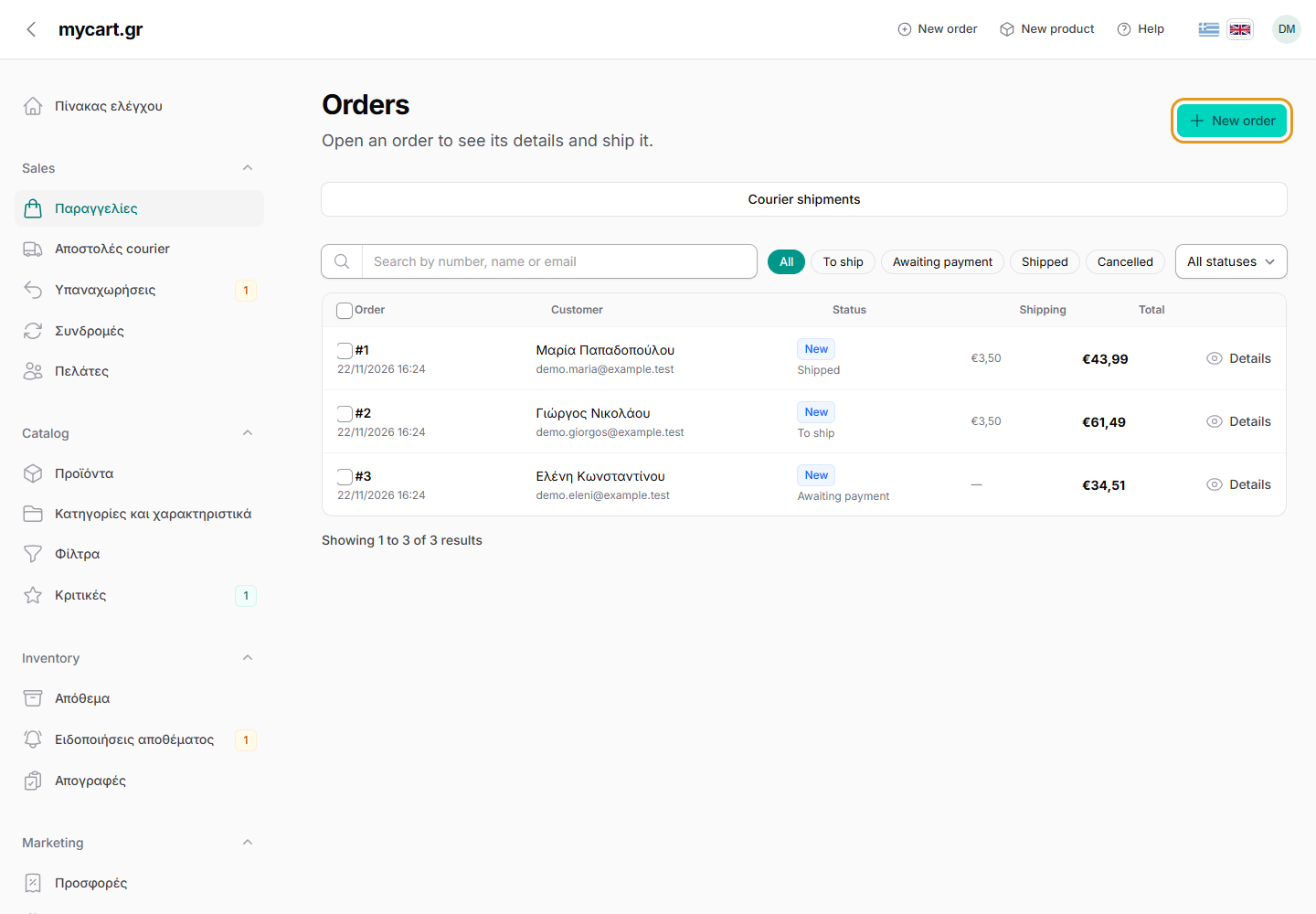
In the menu: Sales → Orders. Click an order to see its details.
Changing status
Click Change status and choose the New status. Before you confirm, What will happen tells you:
- whether an email goes to the customer (only if the status has notification turned on)
- whether stock is taken away or given back, and how many units per code
With Notify the customer off, the email is not sent this time. The Note stays in the order's history and the customer does not see it.
For many orders at once, tick them in the list and change the status of all of them. The result tells you how many changed, how many were already there and how many emails went out.
Change an order in a final status (e.g. "Completed") only to correct it. The customer may already have been notified and stock may move again.
You set up statuses, their emails and what they do to stock in Order statuses.
Payment outside the online shop
When the customer paid in cash, by bank transfer or by card terminal, click Record payment on the order. Enter the payment method and, if there is one, the transaction reference. The order moves to "To ship".
Shipping
With Record shipment you mark what is leaving. Quantities are filled in with what remains. For a partial shipment change the quantities, and the order shows "Partly shipped". For courier vouchers, see Courier shipments.
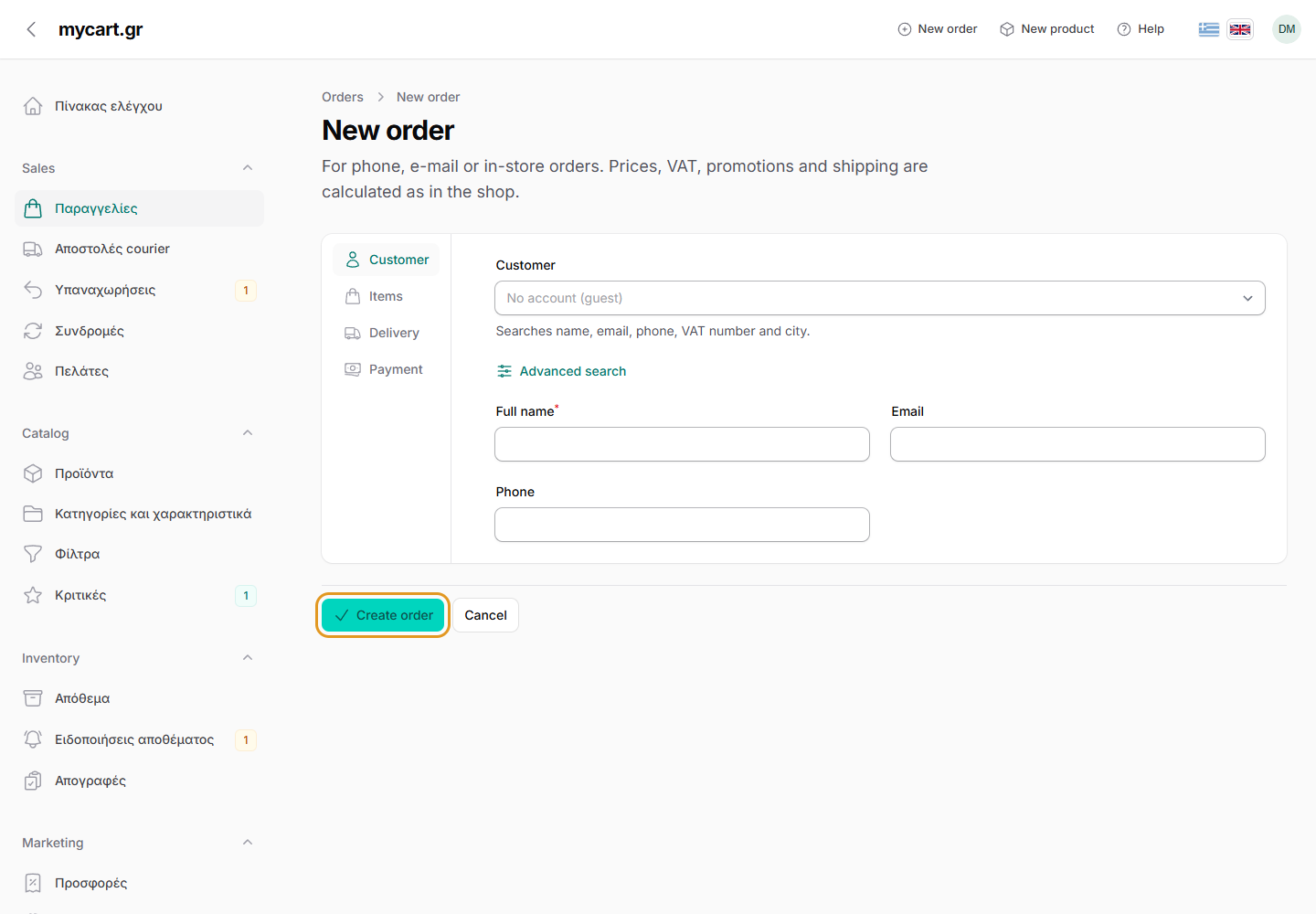
New order by phone or in a physical store
Click New order (it is also in the top bar). Prices, VAT, promotions and shipping are calculated as in the online shop.
- Customer: search by name, email, phone, VAT number or city, or choose No account (guest).
- Products: add them one by one, or open Advanced search for title, barcode, category or only those in stock.
- Coupon, if there is one.
- Delivery: delivery option and address. For collection from the shop without an address, first create a "Collection" option in Delivery options.
- Payment: "Awaiting payment" or "Already paid".
An order you edit later is recalculated as in the online shop, with its stock reserved again. If it had a coupon, enter it again to keep the discount.