
In the menu: Marketing → Gift cards.
A gift card is a means of payment, not a discount. The order keeps its totals and VAT, and the gift card covers part of the amount to pay.
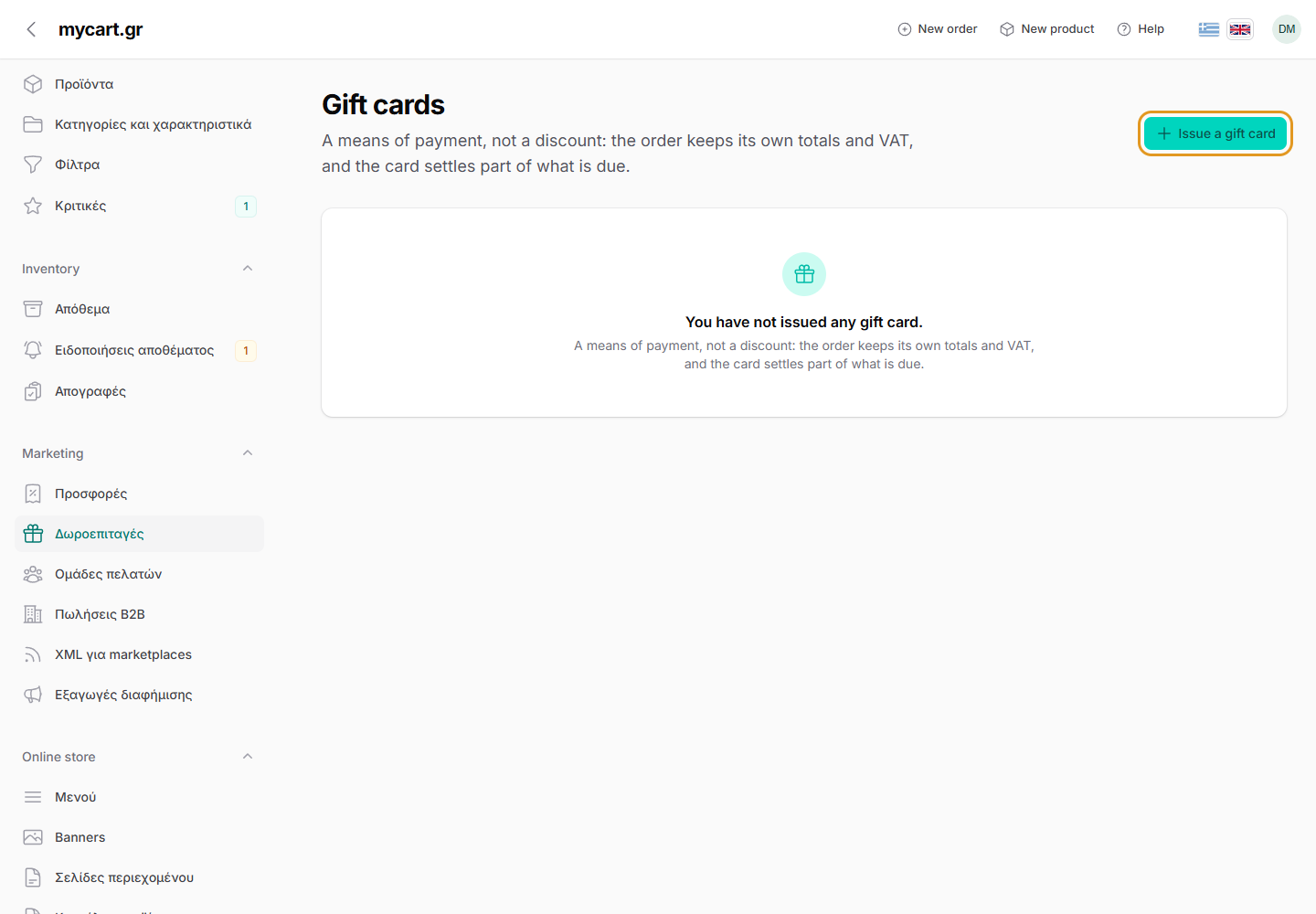
Issuing from the admin
- Click Issue a gift card.
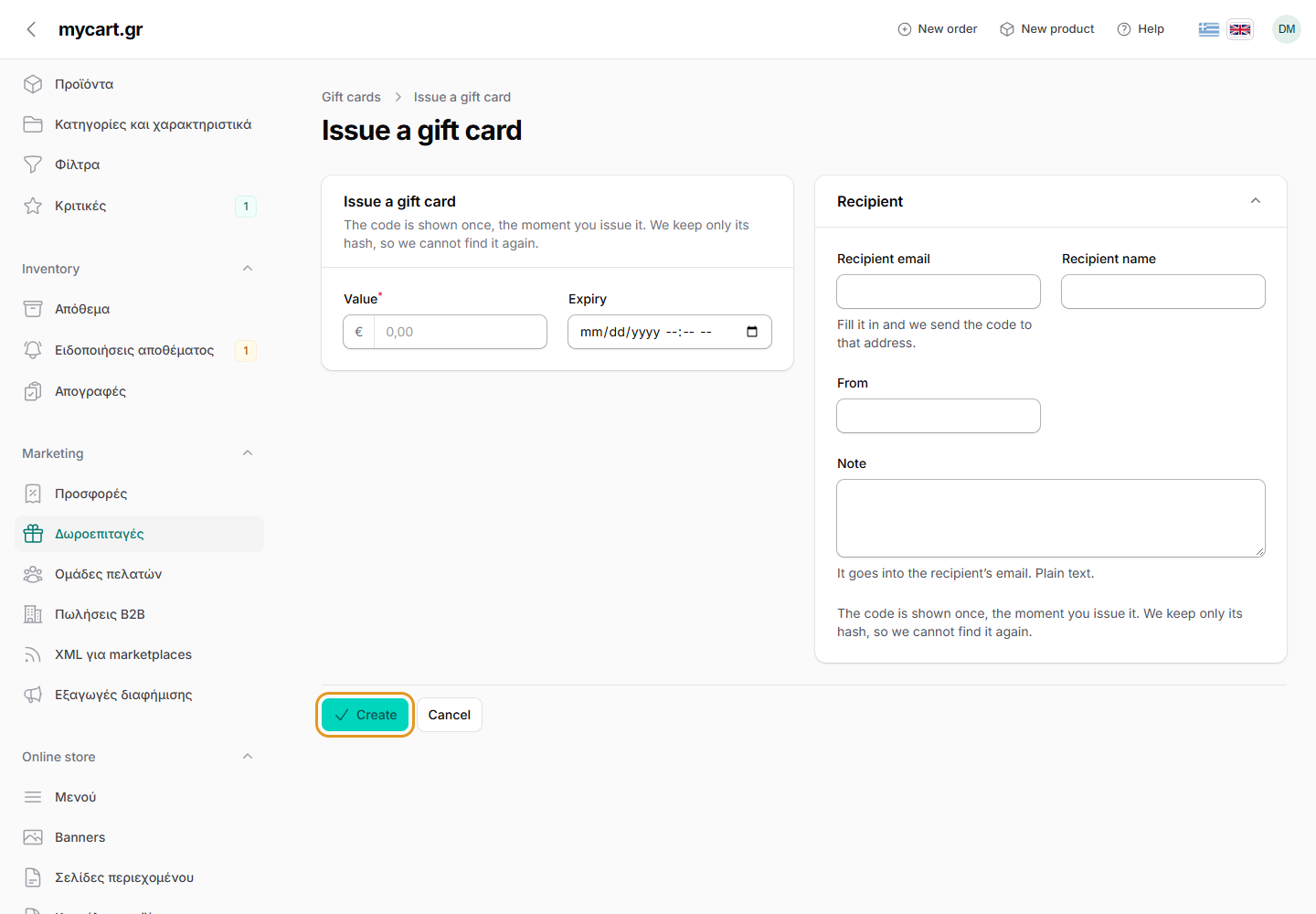
- Enter a Value and an Expiry (or "No expiry").
- If you fill in Recipient email, the code is emailed there, together with the name, the "From" and your Note.
The code is shown once, right after you issue it. We do not keep it, so it cannot be found again. Copy it or send it then.
For a gift card you will post, there is Code to print. You print it and send it yourself. No email goes out.
Selling in your store
Create a product and turn on This product is a gift card. On payment, one gift card is issued per unit and the code is emailed. In the list they show as "Bought by a customer".
Balance and cancelling
Each gift card shows its Balance, status and Usage history per order. Cancel sets it to zero and it can no longer be redeemed. This cannot be undone.