
In the menu: Catalog → Suppliers.
You give the link or the file of the catalogue your supplier sends you. The shop brings the products in and keeps prices and stock up to date as often as you choose. How many suppliers you can have and how often they update depends on your plan.
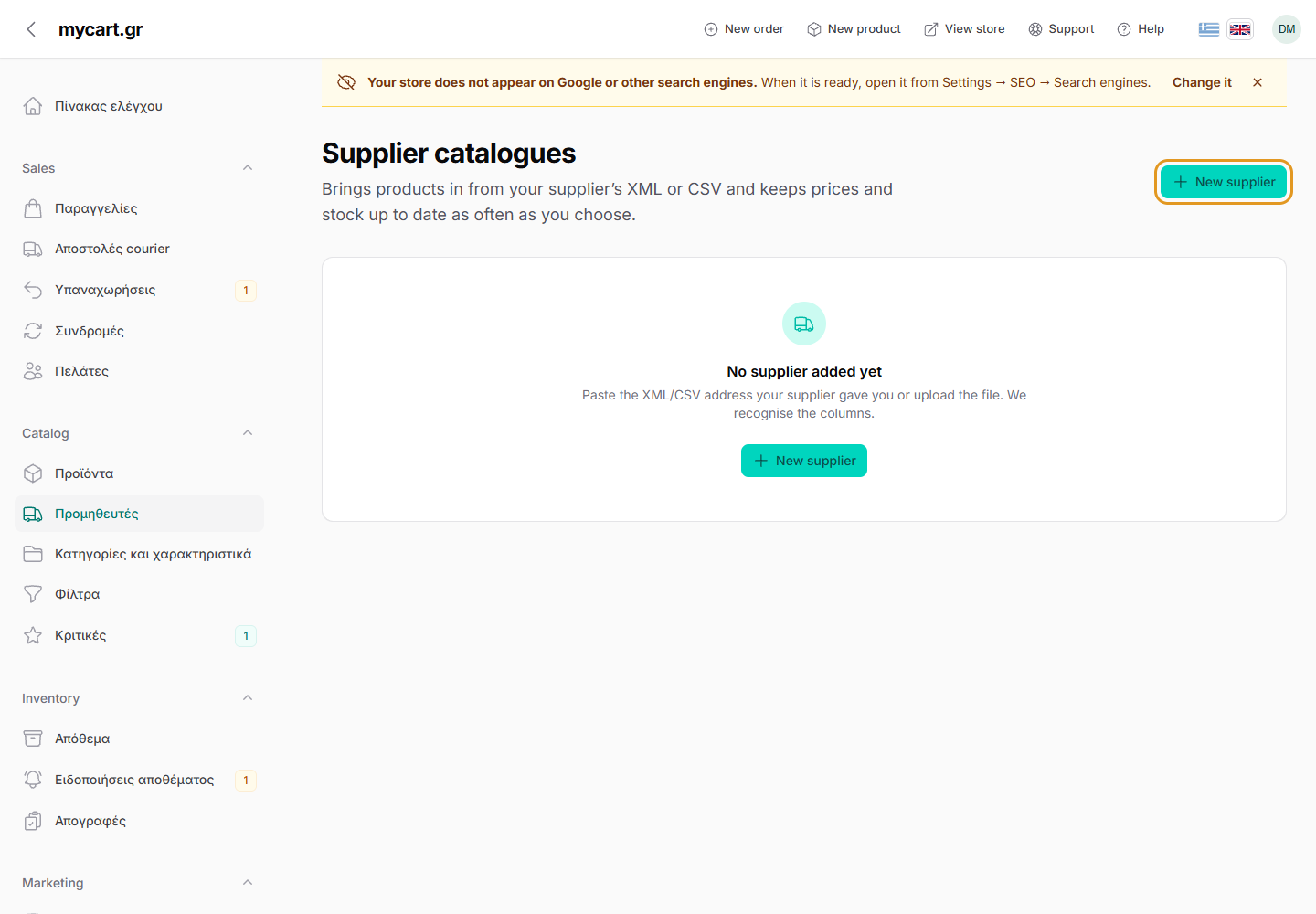
New supplier
Press New supplier, give it a name and choose where the catalogue comes from:
- URL: the link to the XML or CSV as the supplier gives it, with any token. If it asks for a username and password, turn on Asks for a username and password. The link and the credentials are stored encrypted.
- File: XML or CSV up to 50 MB. With a file the import runs only when you start it. Automatic updates need a URL.
Analyse catalogue reads the catalogue and suggests which column goes where. Compressed files (ZIP, GZIP) are not read: ask the supplier for the uncompressed one.
Column mapping
Three fields are always needed: the supplier code, the name and the price. The code links each line to your product, so it must be unique and must not change. Under each column you see a check, for example how many of its values were read as prices or as valid EANs.
You can also map a sale price, stock, SKU, EAN, MPN, weight, brand, category, description and up to six image columns. Stock can be a quantity or text such as “In stock”. When the supplier gives each size or colour on its own line, map the Model code column: lines with the same code become one product with up to three variant attributes.
Categories
A rule says where a supplier category goes, for example “Computers > Laptops” into your own “Laptops”. It also covers its subcategories. When two rules match, the more specific one wins. Suggest from names creates rules for categories with the same name in your shop.
For anything no rule covers you choose: a new category, the default one or none. With Apply the rules to products already imported the rules apply on every import, not only when the product is created.
Prices
The shop price is the supplier price plus your margin (a percentage, a fixed amount or both), with VAT and rounded to .90, .99 or a whole number. Say whether the catalogue price is retail (with VAT) or wholesale (without). The example next to it shows what the customer will see.
Stock and missing products
Stock is written to the warehouse you choose. When the catalogue gives availability instead of a quantity, you set how many units “available” means.
A product missing from the catalogue becomes out of stock, becomes a draft or stays as it is. If it became a draft and the supplier adds it back, it is published again. Products you made drafts yourself stay drafts.
New and existing products
New products come in as drafts, for review, or published straight away. If you already have the product with the same SKU or EAN, no second one is created: it is linked and updated. When two suppliers share codes, give one of them an SKU prefix.
The name and description are updated on every import only if you turn that on. With it off, your own edits stay.
Schedule and runs
A Full import brings new products, images, categories and every field. Prices and stock is a quick update of those two only and can run more often. Before you save, the Preview shows the first records as they will come in.
The import runs in the background and you can close the page. The list shows how many were created, updated and failed. What did not go through shows what went wrong, line by line.
When an import stops by itself
So that no products are lost, the import stops and shows Needs review when:
- more than half of the products are missing compared with the last time,
- many records cannot be read, usually because the supplier changed columns,
- every product has zero stock.
If the catalogue is right, press Continue. If the supplier added or changed columns, Analyse again reads it again and keeps your mapping.
Delete removes the supplier and its schedule. The products stay in the shop and are no longer updated automatically. For a one-off import from another online shop see Importing a catalogue.