
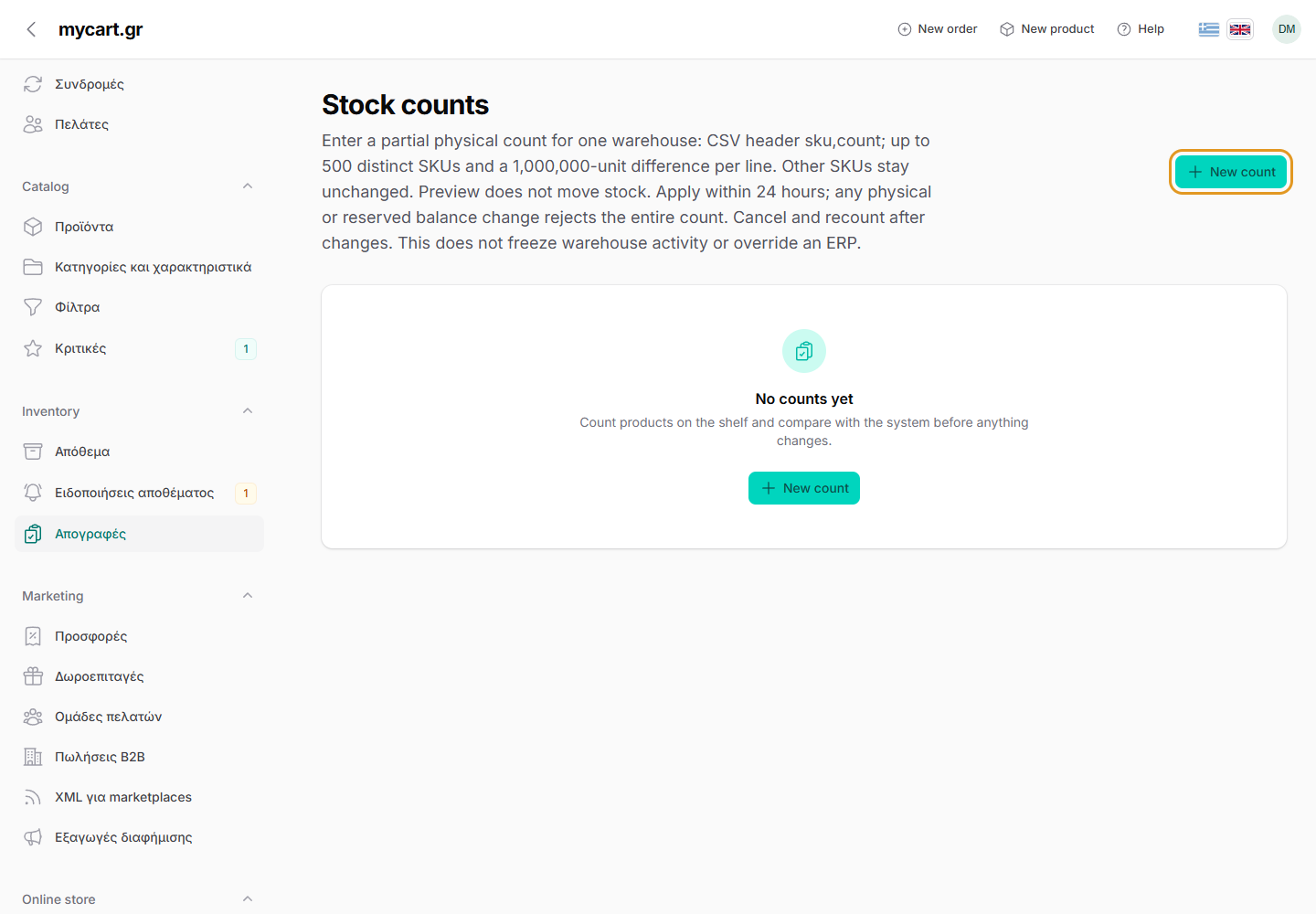
In the menu: Inventory → Stock counts.
A stock count compares what you counted on the shelf with what the system says, before anything changes.
Steps
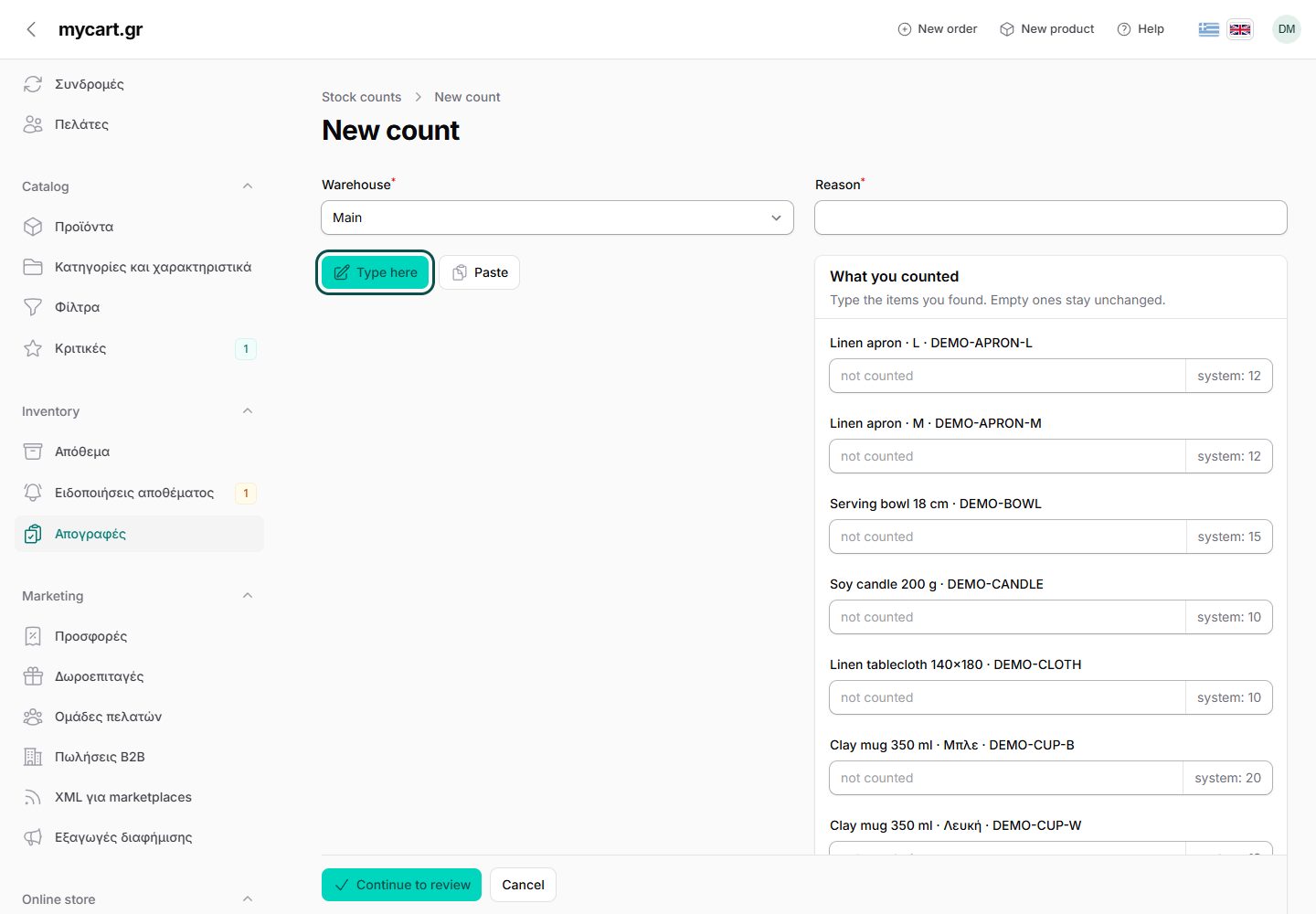
- Click New count, choose a Warehouse and a Reason (monthly, yearly, shelf check).
- Enter what you counted. Either Type here, one field per product, or Paste a CSV with the header
sku,count. Anything you leave empty does not change, so you can count a single shelf. - Click Continue to review. You see the Differences per product. Up to this point the stock has not moved.
- Click Apply to stock. The quantities become what you counted and the differences are written to the history.
Limits
- Up to 500 different SKUs per count.
- The count must be applied within 24 hours.
- The warehouse keeps working normally while you count. But if the quantity of a product you counted changes (a sale, a correction), the whole count is rejected. Cancel it and count the products that changed again.