
In the menu: Settings → Team → Ownership and support.
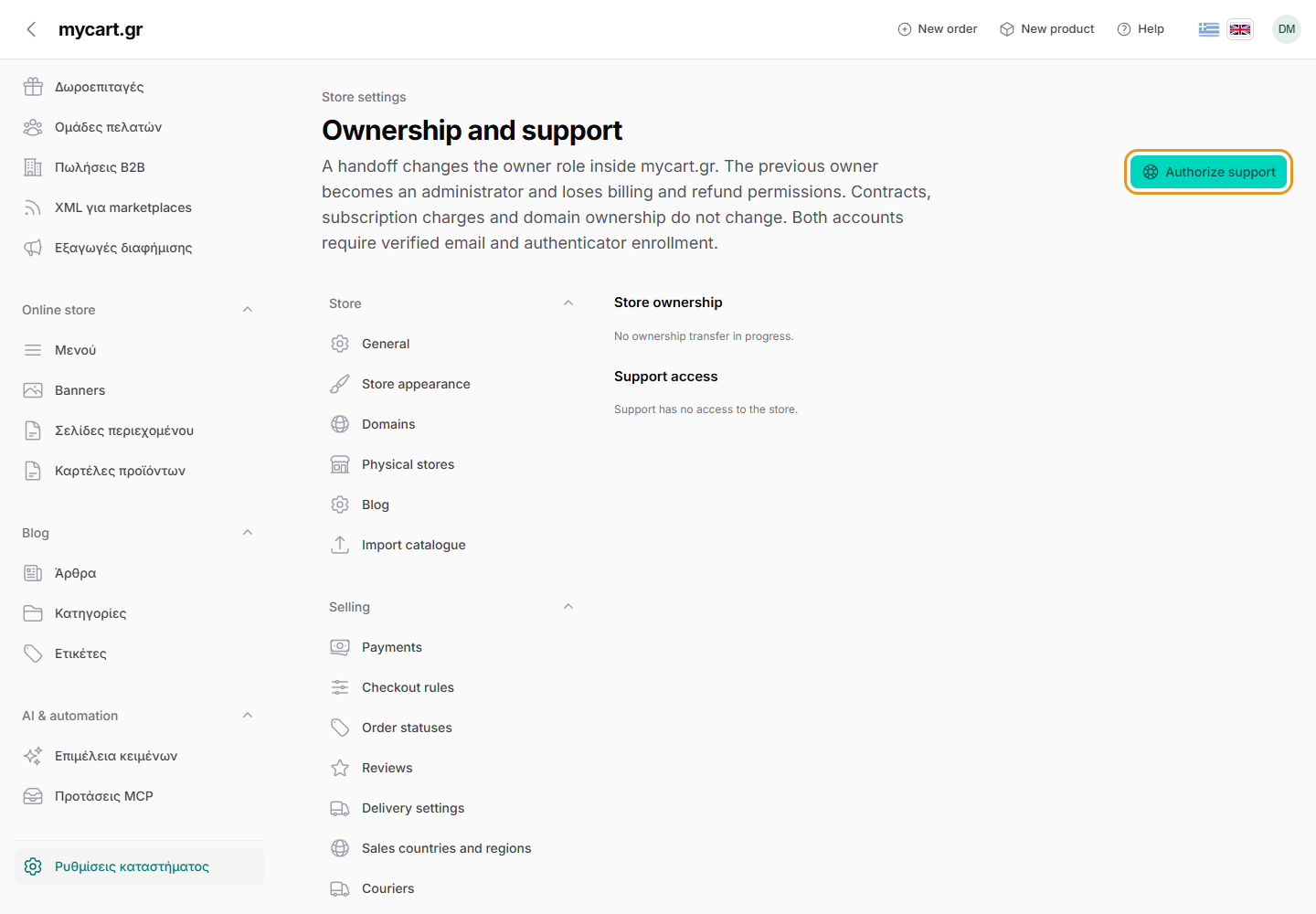
Handing over to a new owner
The new owner must already be a staff member of the store. Both accounts need a verified email and an authenticator app.
- Under Request ownership handoff, choose the new owner from your staff.
- Confirm. The request expires after 24 hours.
- The new owner signs in and clicks Accept handoff with their own password.
After acceptance you become an administrator and lose billing and refund rights. Pending invitations, support access and both accounts' MCP tokens for the store are revoked.
The handoff only concerns the role inside mycart.gr. Contracts, subscription charges and domain ownership do not change.
Support access
If mycart.gr support needs to look at your store, they give you a Support account ID. You enter it here, together with the Duration in minutes, and confirm.
Temporary access shows only counts: products, orders, notifications and stock positions. It does not show customer details or order contents, and it does not allow changes. Every view is logged. You can withdraw it whenever you want with Revoke.
Tickets and chat with our team
Click Support in the top bar (the lifebuoy icon). Only the store owner and its administrators can open tickets and chat.
Your plan comes with a support level. The top of the page shows what it includes: tickets, chat, phone, our team's hours and how fast we answer each priority. With set hours, the time counts working hours only. A ticket «within 6 working hours» opened on Friday at 16:00, with hours 09:00-17:00, is answered by Monday at 14:00.
For a ticket, click New ticket, write a subject, pick a priority and describe what you need. The list shows only the priorities of your level, each with its reply time.
When we answer, you get an e-mail and the ticket shows «You have an answer». If you need something more, click Reply and the ticket opens again. Once it is solved, click Close ticket.
Chat puts you in a live conversation with our team. If someone looks after your store, their name is shown above the conversation. For anything that takes time, open a ticket instead.