
In the menu: Settings → Store → Store appearance.
Click Customise to open the editor. View store shows the result as your customers see it.
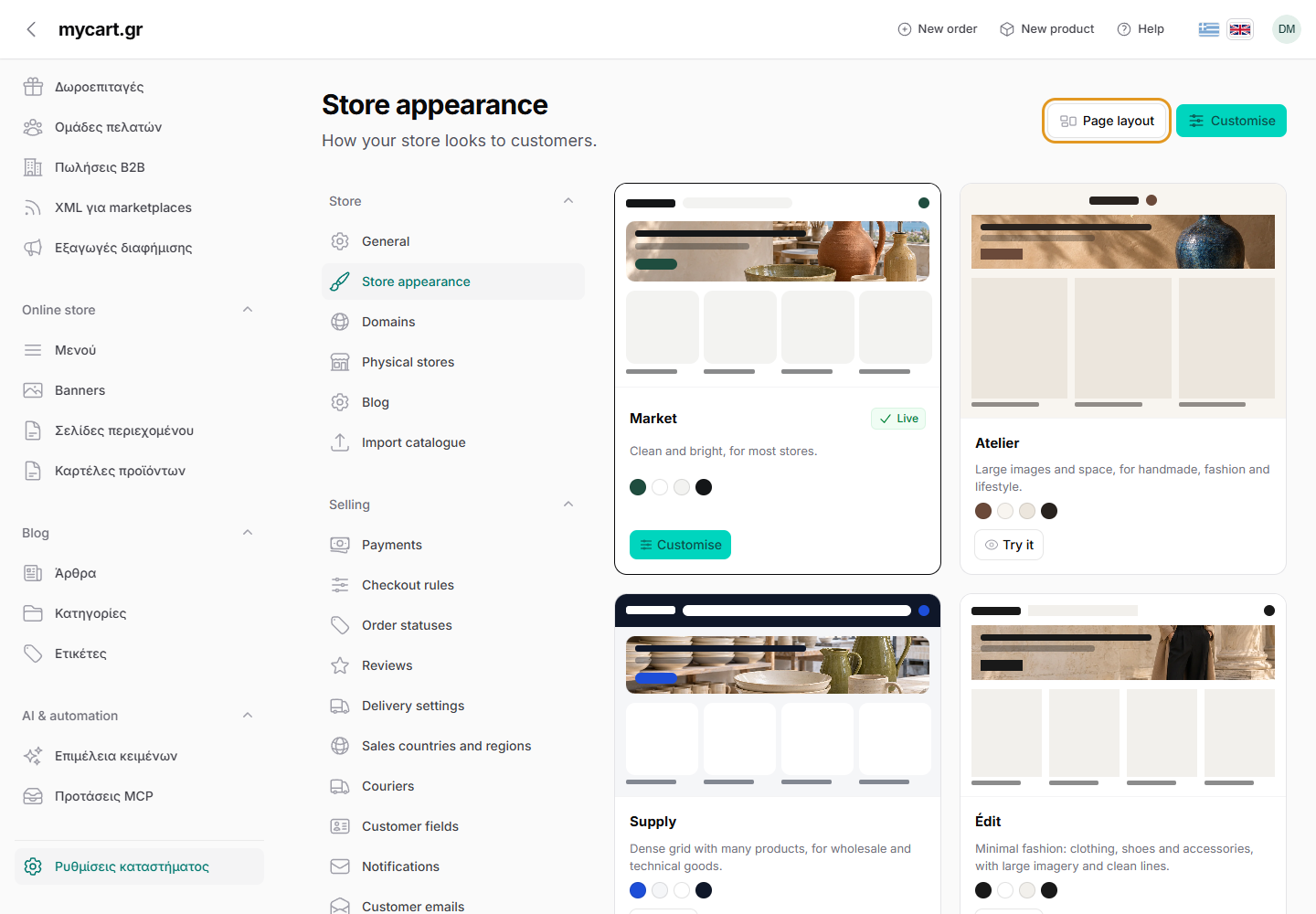
Theme, style and colour
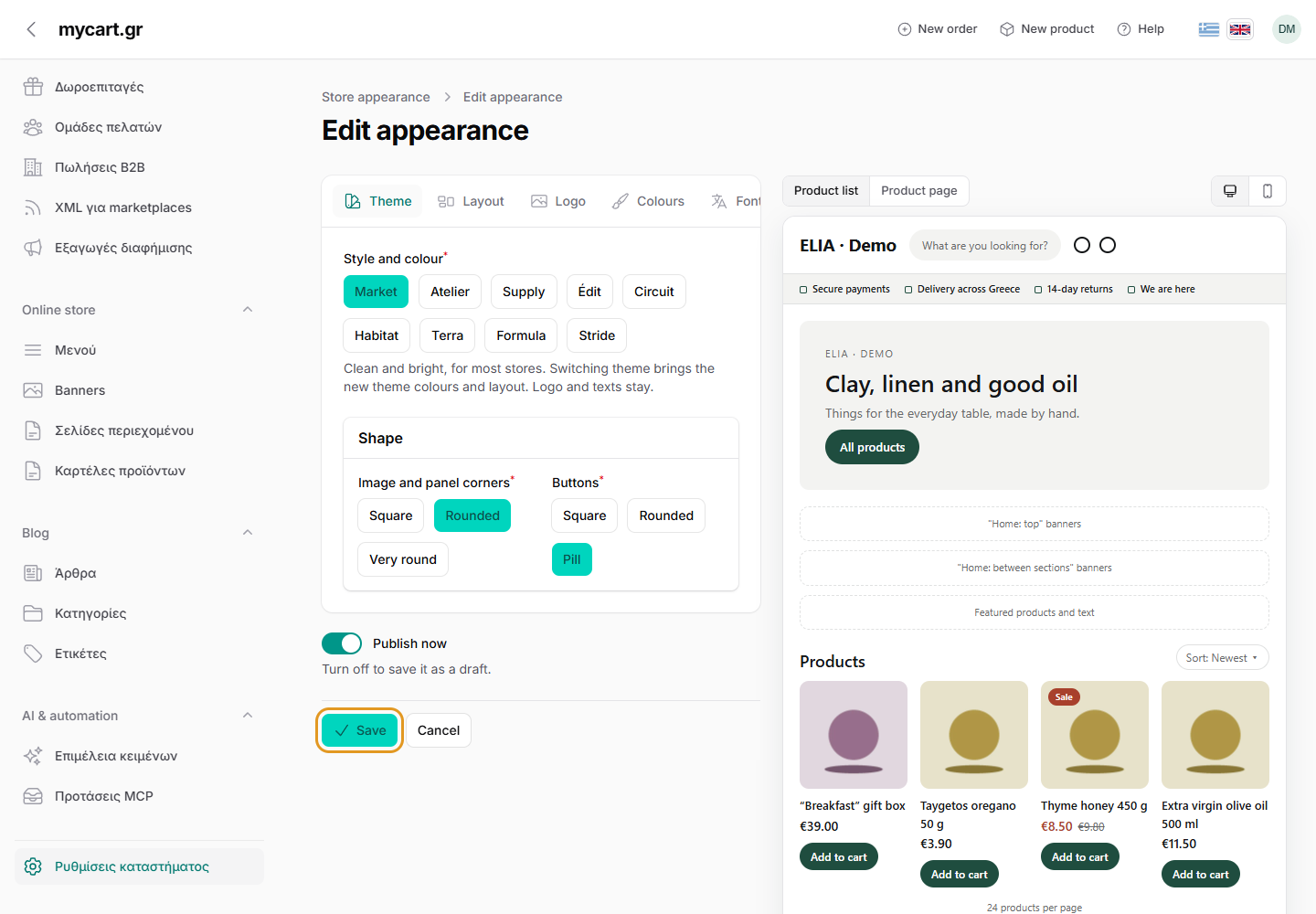
The Theme sets the layout. Changing theme brings the new theme's colours and layout, but your logo and texts stay. Under Colours there are Ready-made palettes for a quick start.
Under Shape you choose corners for images and frames (square, rounded, very rounded) and pill-shaped buttons.
Logo
PNG, WebP or JPG up to 5 MB. It looks best with a transparent background. You set its height and position (left or centre). Without a logo, the store's name is shown.
Fonts
A separate font for headings and text, and headings in normal or CAPITAL letters.
Product list
- Layout: grid or list, and how many columns on desktop and on mobile
- Products per page
- Image shape: square, portrait or landscape, filled or showing the whole image
- Sort: the default order and which sort options the customer sees
Product page
Choose how images are shown: large with a grid, one below the other, or a slider with thumbnails. In the slider, videos and 360° images also appear among the thumbnails. Whether images sit on the left, right or on top is set in Page layout.
Cart
With Side cart, "Add to cart" opens a panel on the right and the customer stays on the page. When it is off, the cart page opens.
Home page
The Heading and Description of the home page, e.g. "Handmade ceramics from Crete".
Page layout
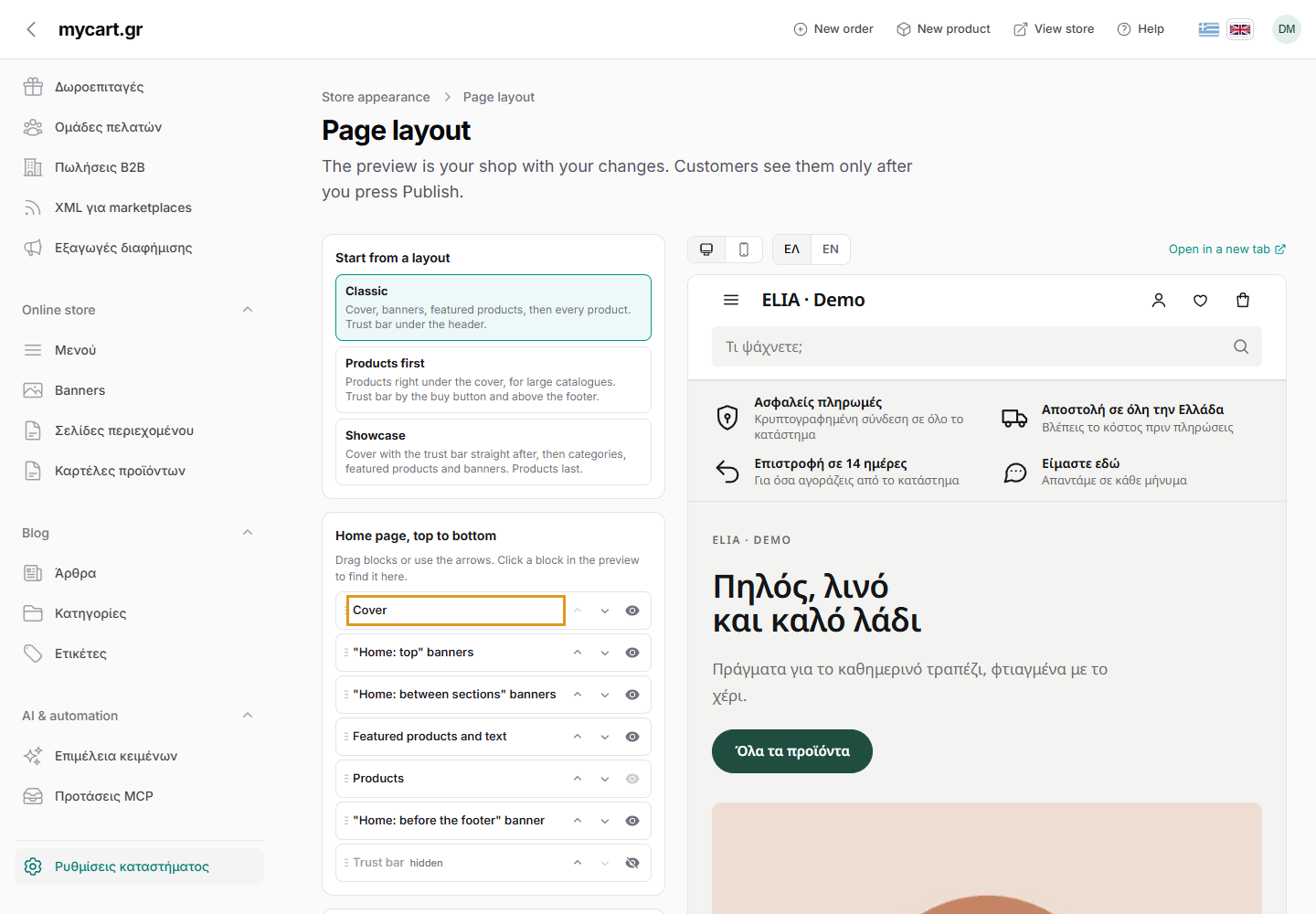
From Store appearance, click Page layout. If you are already in Customise, save your changes first and open Layout. The editor opens on its own page: change the layout on the left and see your shop's preview on the right.
- At the top left choose a page: Home, Category or Product. The category layout also applies to search, brands and filtered lists.
- Under Start from a layout, choose one of the theme's layouts. It replaces what you changed on that page.
- Under Blocks, top to bottom, drag blocks or use the arrows. Use the eye to hide or show them. The products, the category title, the images and the buy box cannot be hidden.
- For columns, click a block in the list or in the preview. Beside makes it a column next to the previous block, Below, same column puts it under that block and In a row of its own gives it the full width. A row takes up to three columns; choose their Widths above the row.
- Under Trust bar, click a box to edit its icon, title, text and an optional link starting with
/orhttps://. You can have up to six and reorder them by dragging or with the arrows. Each needs a Greek title. - Choose whether the trust bar shows below the header, on the product page or above the footer. Its exact place on home, category and product pages follows each page's list.
On phones columns stack, with images and filters first. Use the toolbar to preview desktop or mobile, in Greek or English. Dashed frames mark empty places; customers do not see them.
Changes appear in the preview, but customers see them only after you click Publish. Save as draft keeps them without changing the live shop. Undo changes restores the published design. Back to the theme layout restores the page you are editing to its default while keeping the trust boxes; publish again to make this visible to customers.
Without a domain, or a published product for the product page, there is no preview, but you can still save the layout.
Publishing
With Publish now, changes go live in the store when you save. When it is off, they are saved as a draft and you publish them from the history when you are ready.