
In the menu: Online store → Banners.
Banners go into places defined by the theme: home page, categories, product page, cart, checkout and the announcement bar.
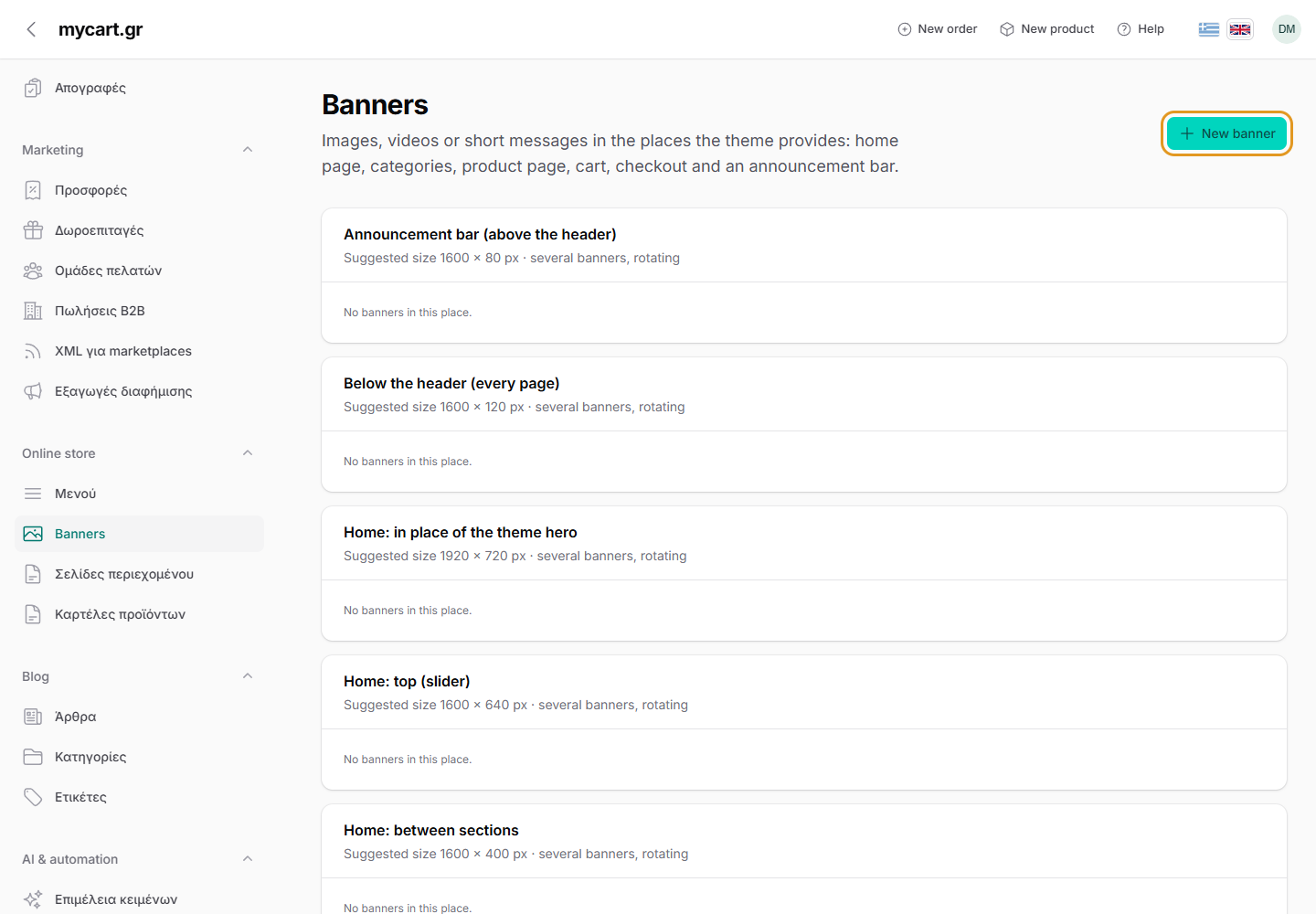
New banner
- Name: only you see it, in the list.
- Texts on the banner: title, text and button text, all optional. Anything you leave empty in English takes the Greek text.
- Alternative text (alt): what the image shows, for people who use a screen reader.
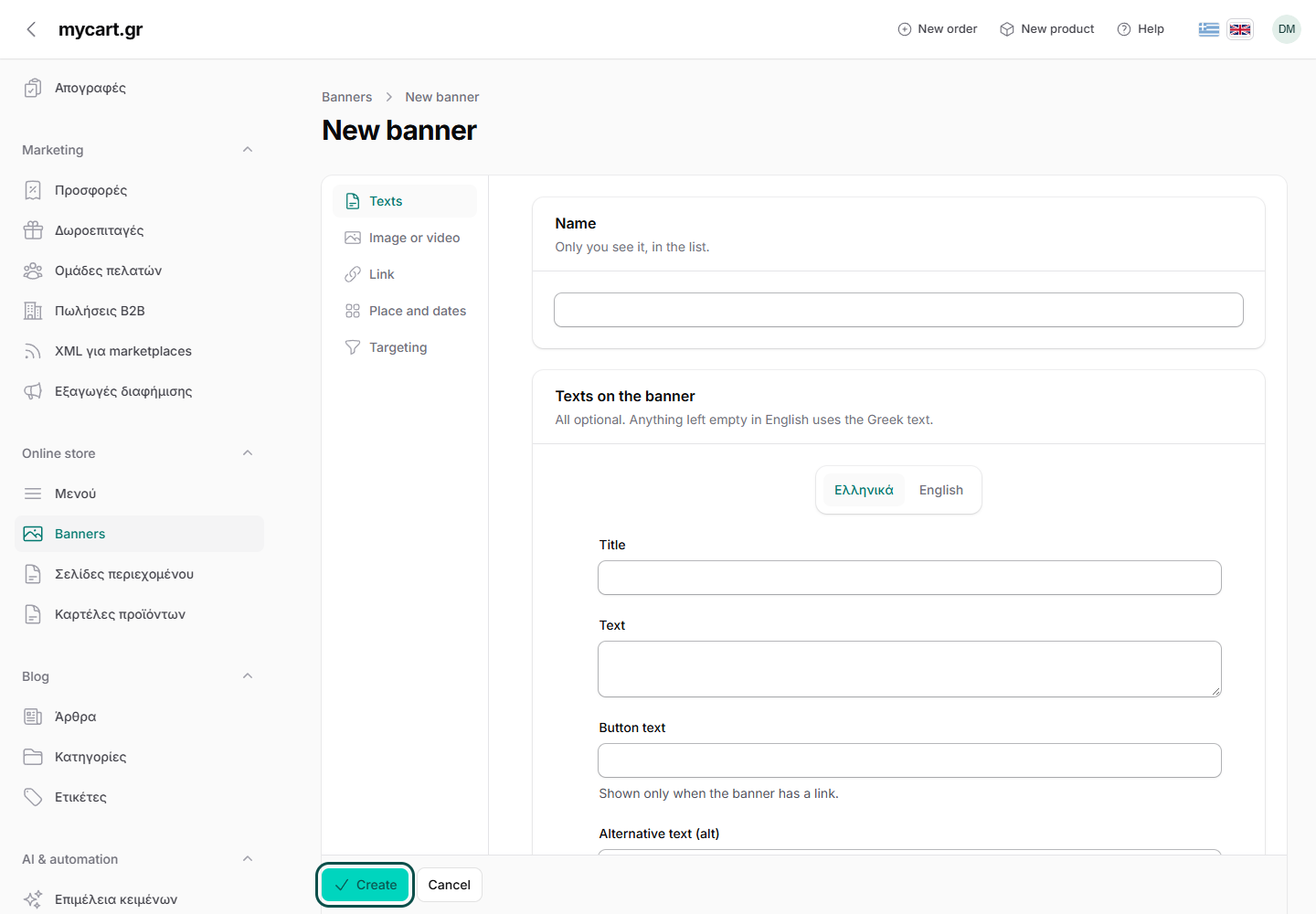
Image or video
- Image: JPEG, PNG or WebP up to 5 MB. You can also add a Phone image, usually taller (e.g. 800 × 1000 px), shown on screens up to 760 px wide.
- Video: MP4 or WebM, muted and looping. Convert an iPhone
.movto MP4 first. - YouTube or Vimeo video: nothing loads from there, not even cookies, until the visitor clicks play. Add a Cover image too.
Link
With a link, the whole banner becomes clickable. Enter a path inside the store, e.g. /shop/en/?q=gifts, or a full
address starting with https://. If the page or product stops being published, the banner is left without a link.
Position and dates
Choose a Position. Positions that accept several banners rotate them. With a banner in the hero position, the home page does not show the theme's hero until the banner ends. Start and end dates let you prepare it in advance, e.g. for Black Friday.
Deleting a banner removes it from the store. Its images stay in the media library.