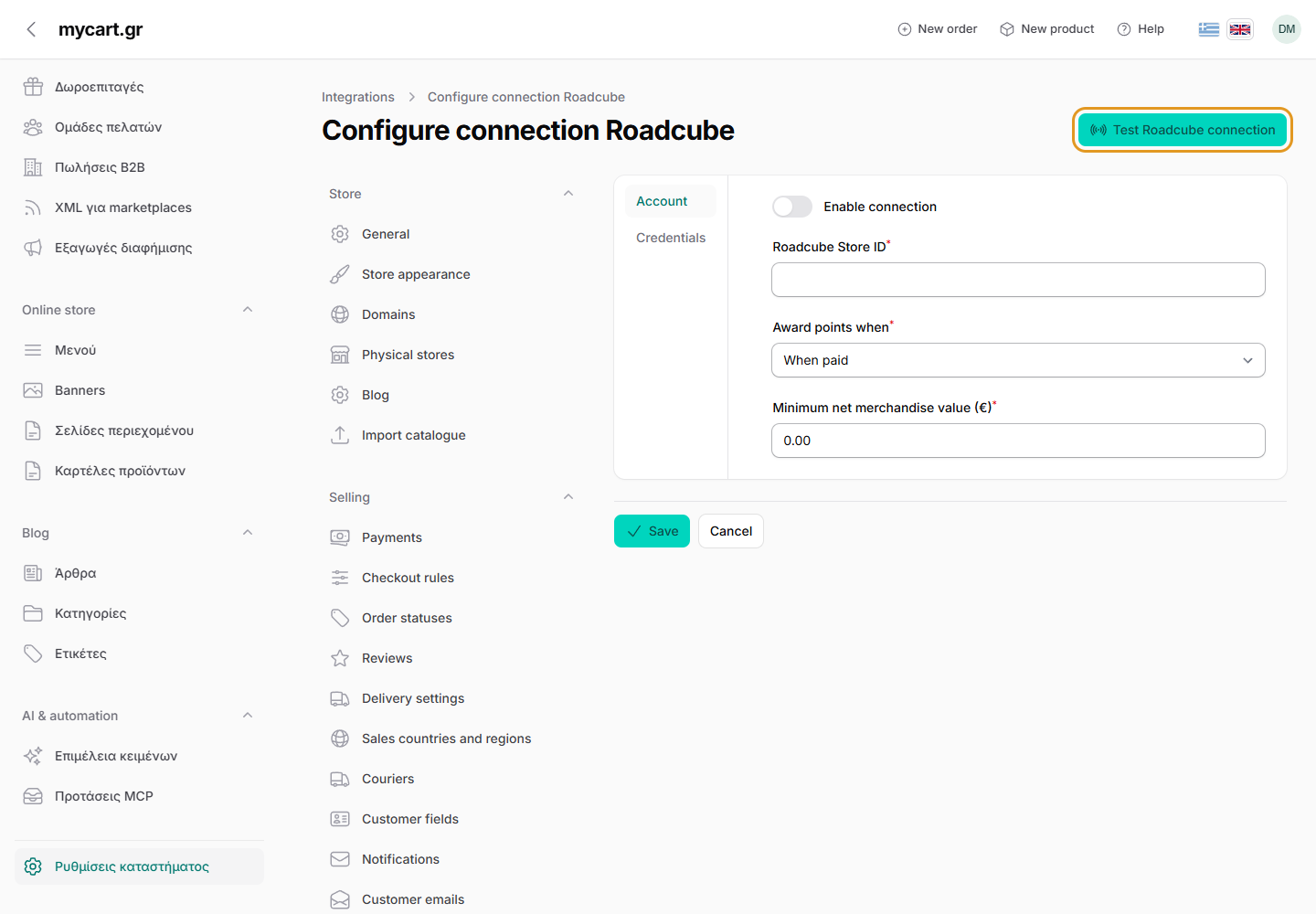
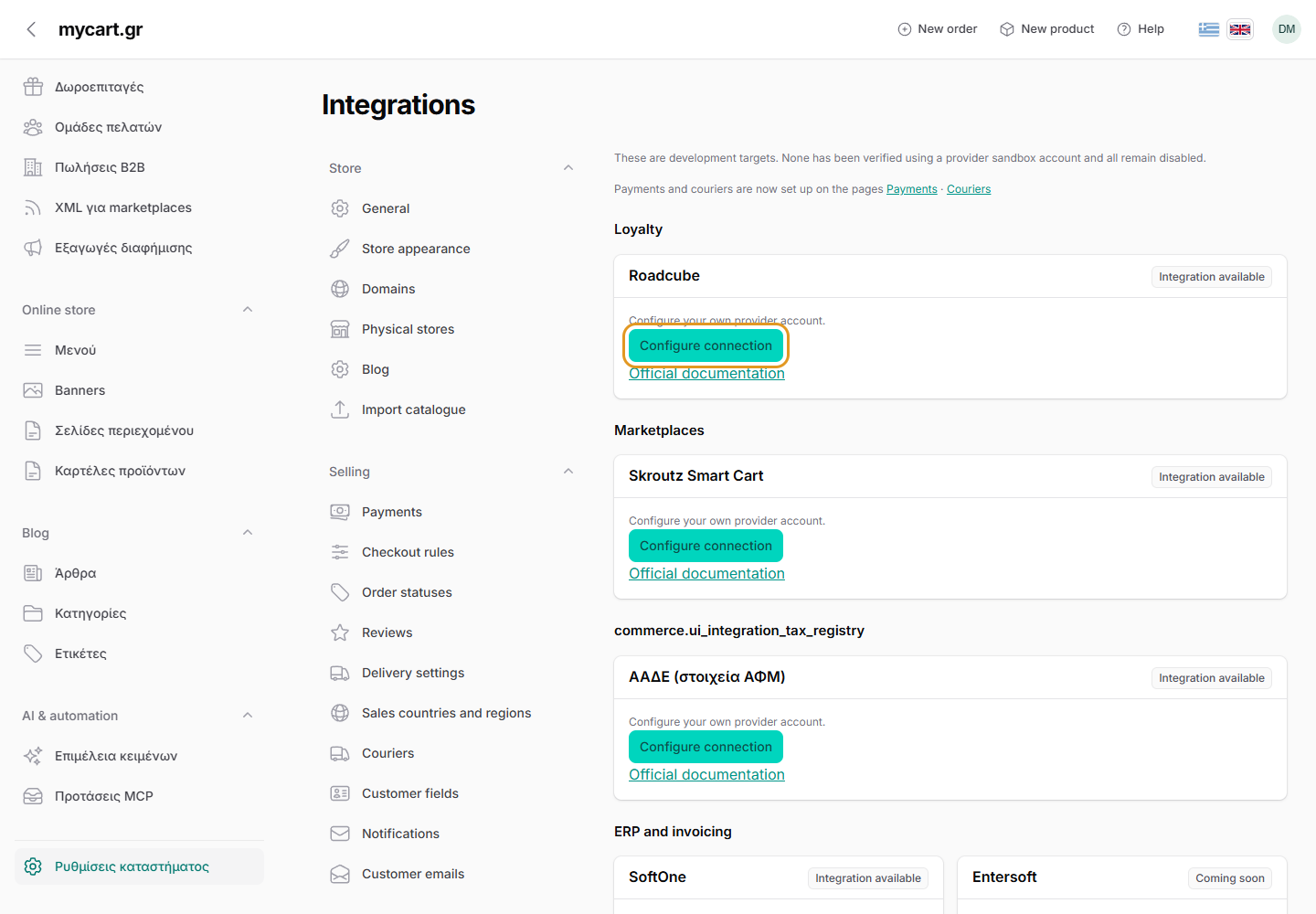
In the menu: Settings → Connections → Integrations.
Every connection has Test connection. Click it after saving, to check that the details work.
ERP (SoftOne)
The connection needs the oncloud account name, the App ID, the username and the password, which your SoftOne partner gives you. Test connection works even before you save.
What it does:
- Prices and stock from the ERP, per SKU, every 15 minutes, every hour, every 6 hours or once a day. The price goes into the product's regular price (promotions do not change) and the stock into the warehouse you choose. ERP codes that do not exist in the store are listed on the page. Sync now starts within the next minute.
- Orders to the ERP, as a sales document, when they are paid or as soon as they are placed. Only orders placed after you turned this on are sent. If the ERP rejects one, it retries up to 5 times.
New connections start without automatic sync, so turn on what you need after testing.
If the ERP's reply is lost, the order stays as "Unknown outcome" and is not sent again on its own, so that it is not entered twice. Check in the ERP and click Send again or Already in the ERP.
Skroutz Smart Cart
Skroutz orders come into the store and are updated from there. The connection gives you a webhook URL that you enter in Skroutz.
If you issue a new webhook URL, the old one stops working immediately. Copy the new one into Skroutz, or orders will stop arriving.
For the Skroutz XML feed, see Marketplace XML feeds.
Roadcube
Loyalty points for your customers. Enter the API token and Store ID from Roadcube. The token is checked by the test, the Store ID on the first transaction.
If a transaction was not confirmed, it shows up to be resolved (Resolve Roadcube operation). Check it in Roadcube first:
- Confirmed not sent: only if you are sure. This allows it to be sent again.
- Confirmed completed: with Roadcube's Transaction ID.
Redeemed points are not returned on their own when an order is cancelled.