
In the menu: Settings → Store → Domains.
Every store starts with an address on mycart.gr. Here you connect your own domain, e.g. www.myshop.gr.
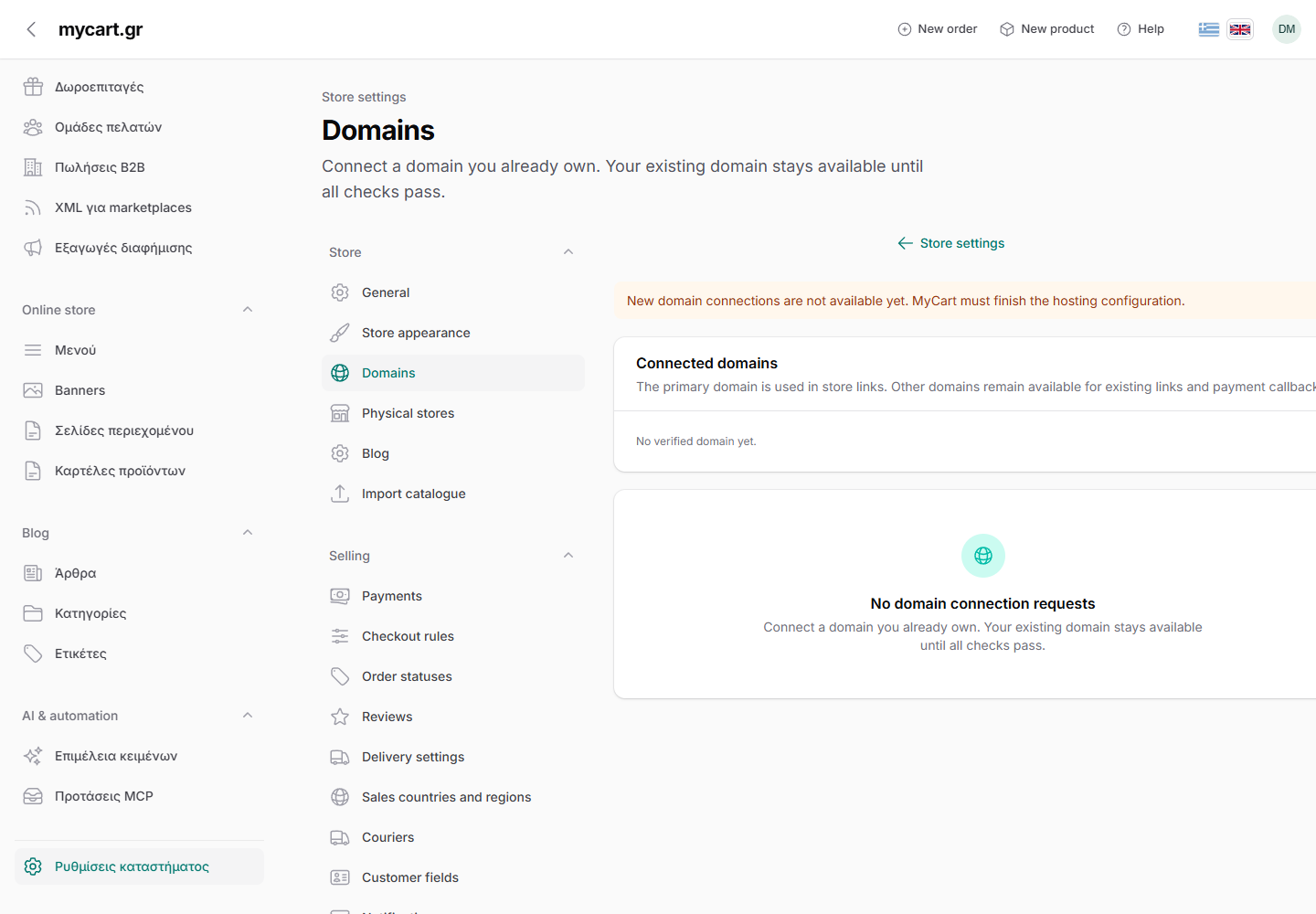
Connecting a domain you already own
- Enter the domain and start the connection.
- The page shows a CNAME record: type, name and value. Add it to the domain's DNS, wherever the DNS is hosted
(e.g. Cloudflare, Papaki), even if you bought the domain elsewhere. If the panel fills in the domain by itself,
enter only the first part as the name, e.g.
www. - Wait. The checks run on their own every few minutes and Connection progress shows where things stand. After DNS, the setup and the SSL certificate take from a few minutes to a few hours.
While the checks run, the old address keeps working normally.
In Cloudflare the proxy must be off: grey cloud, "DNS only". With an orange cloud the check cannot see the record.
Do not change your email records (MX). Connecting the store does not need them.
The bare domain, without www, is not connected by this record. If you want it to open too, set up a redirect at
your provider from myshop.gr to www.myshop.gr.
Primary domain
If you have several domains, the Primary one is used in the store's links. The others stay active, so old links and payments keep working.
Buying a domain
In Domain purchases you request a new domain. Once it is registered, it connects to the store on its own.
Image CDN
In the menu: Settings → Image CDN. A CDN keeps copies of your images on servers around the world, so pages open faster. It needs an active domain.
- Open an account with the provider we recommend, or any CDN you like, and create a «pull zone». As its Origin URL, use your store address as the page shows it.
- Copy the address the CDN gives you (for example myshop.b-cdn.net), paste it and click Check and switch on.
Before it is switched on, we check that the CDN brings your own store and keeps image sizes apart. If something is missing, the message says what to change in the CDN settings. Switch off the CDN serves images from the store again.